If you don’t see Settings, click your name, bottom left, and choose it from the menu.
Add members
You can add several people at once, with the same role and the same plan, and change each person’s plan afterwards.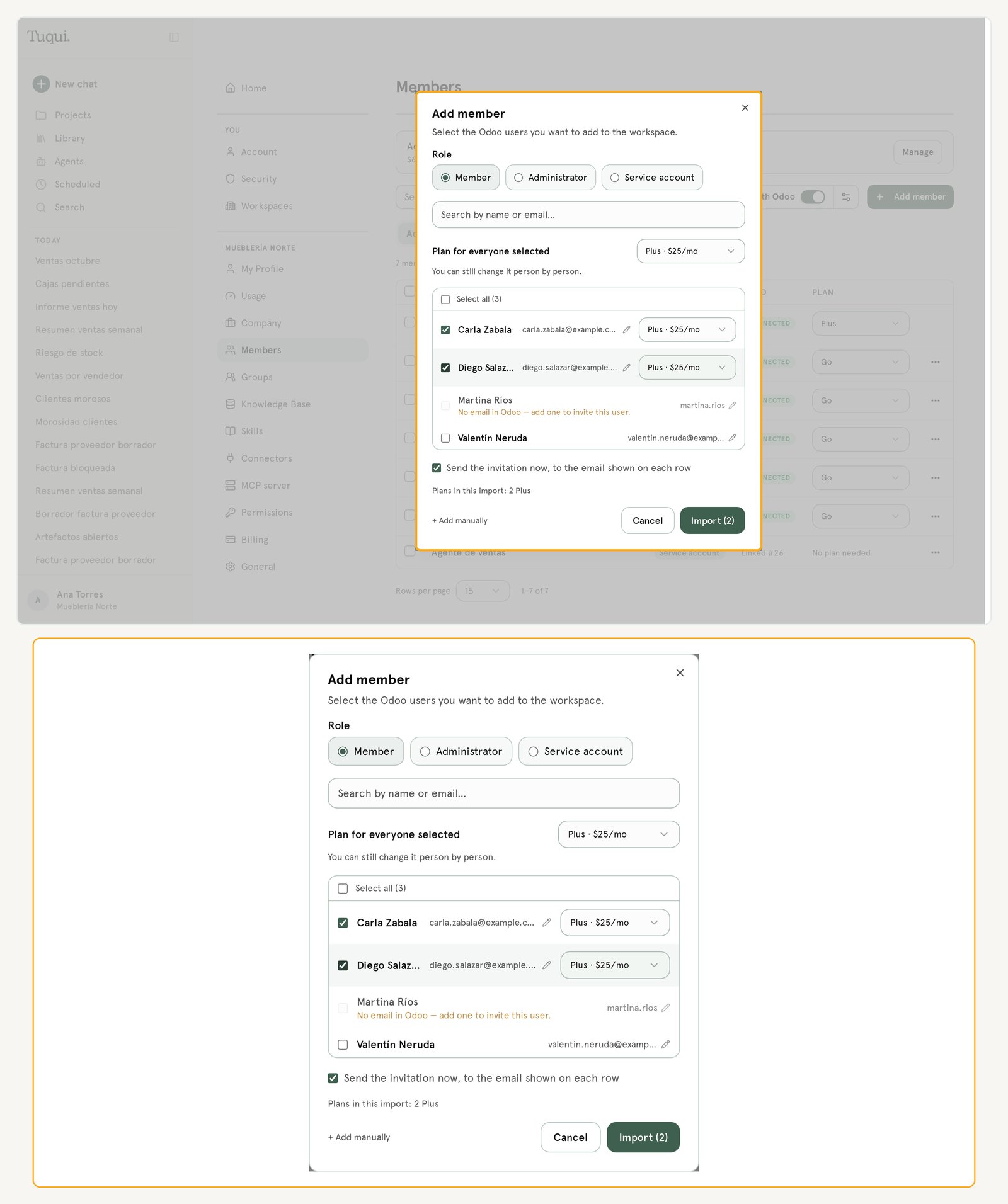
- Open Settings → Members and click Add member. In the screenshot: 1 is your name, bottom left, where you open Settings; 2 is Members; 3 is Add member.
- Choose the Role: Member, Administrator or Service account.
- Check the people in the list, which are the Odoo users you haven’t imported yet. Search by name or email finds them faster.
- Under Plan for everyone selected, choose the plan they join with.
- Leave Send the invitation now, to the email shown on each row checked if you want them to get the email.
- Click Import. The button shows how many people you picked, for example Import (3).
Sync with Odoo
If you connected with the Tuqui module, you can also turn on Sync with Odoo: the active internal users of your Odoo show up under Pending and you send the invitations. You are charged only when the person accepts.Pending invitations
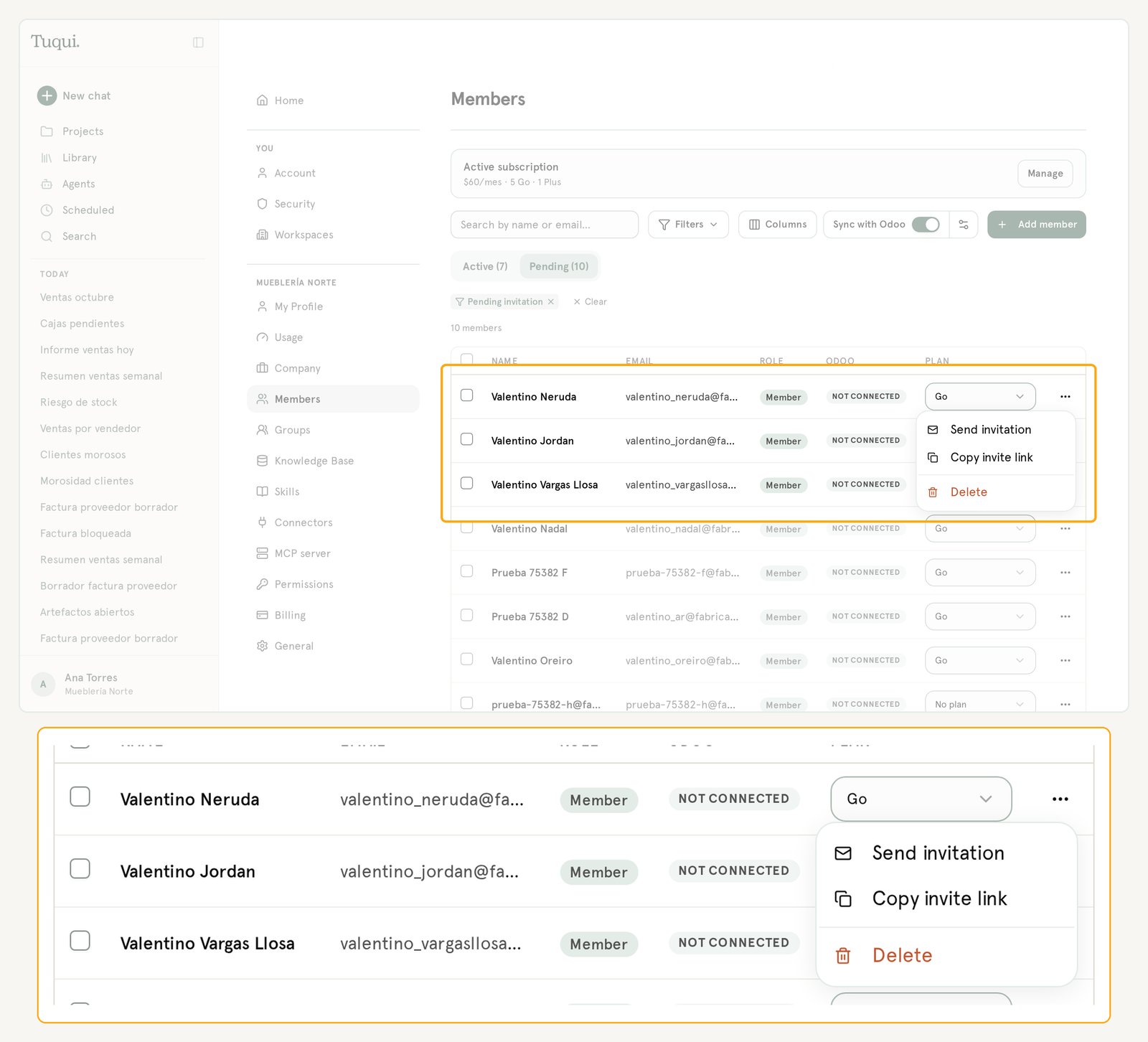
People who haven’t accepted yet appear in the Pending tab. Click the Pending tab. From the ⋯ menu on their row you can:- Send invitation, to send the email again.
- Copy invite link, to send it another way, for example over WhatsApp. It shows only if that person doesn’t have a Tuqui account yet.
- Delete, to take them off the list.
Link each person to their Odoo user
Tuqui queries Odoo with each person’s own Odoo user, so everyone sees only what they can see there. People who come from Odoo, imported or synced, are already linked. To see or change the link, and also the role and the plan, click the person’s name. Their profile opens.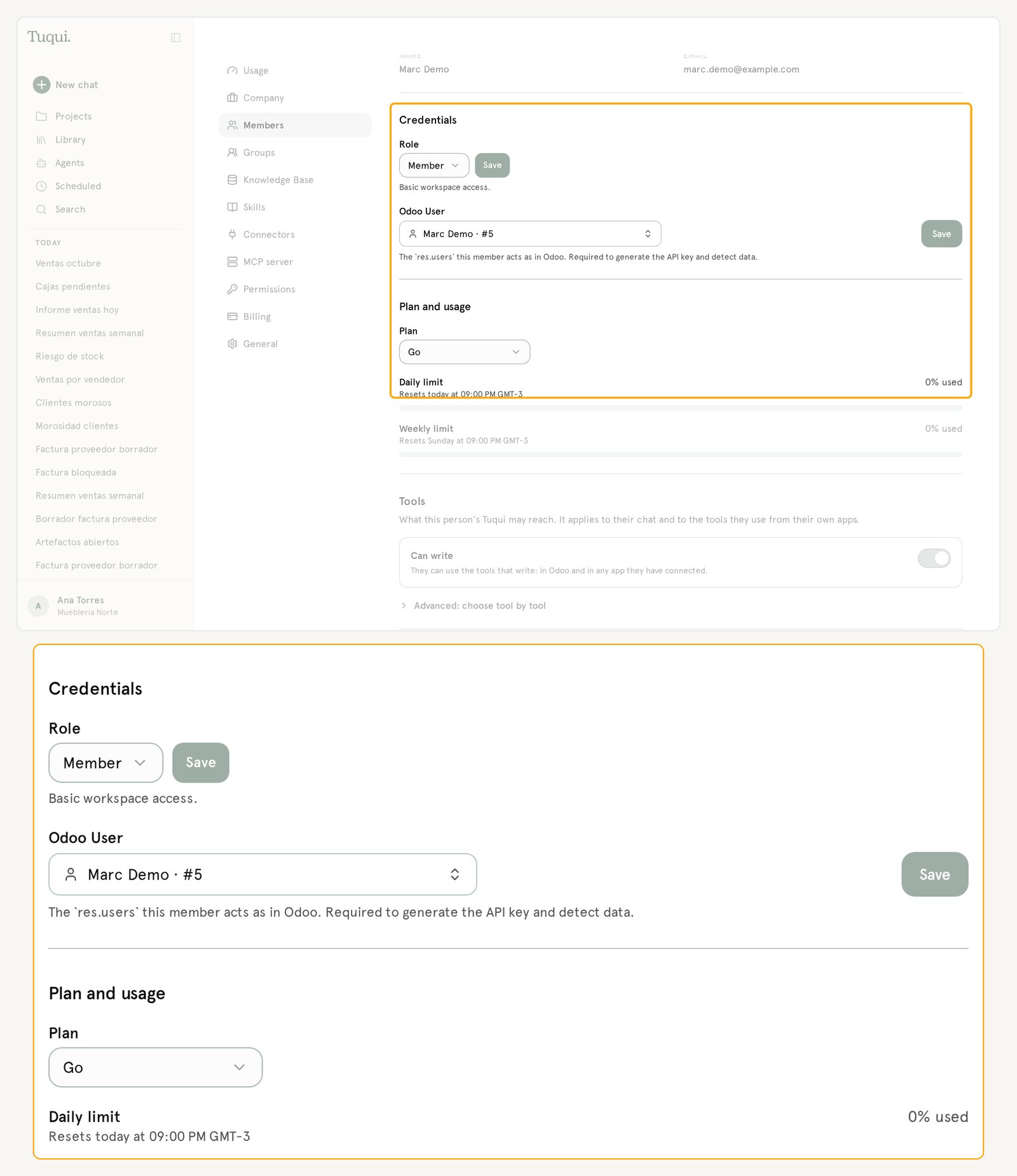
- Under Credentials, choose the person’s Odoo User and click Save. Each field has its own Save button.
- Under Plan and usage, choose the Plan.
Several people with the same Odoo user
If your team shares one Odoo user, each person can still have their own Tuqui user, with their own email and plan. They all end up linked to the same Odoo user.- Open Settings → Members, click Add member, then + Add manually.
- Enter the person’s Email, choose their Plan and click Add.
- Click the person’s name to open their profile.
- Under Credentials, choose the shared user in Odoo User and click Save. In the list, that user shows “Already linked to another member”.
- Tuqui warns “This Odoo user is already taken”. Click Link anyway.
Until you assign the Odoo user, that person can’t connect through MCP. Tuqui queries Odoo as the shared user, so everyone sees the same as that user does, and everything Tuqui writes in Odoo is signed by that same user. With several Tuqui users linked to the same Odoo user, the Tuqui panel inside Odoo can’t tell who you are: use Tuqui on the web. More detail in Tuqui inside Odoo.
Plans and usage limit
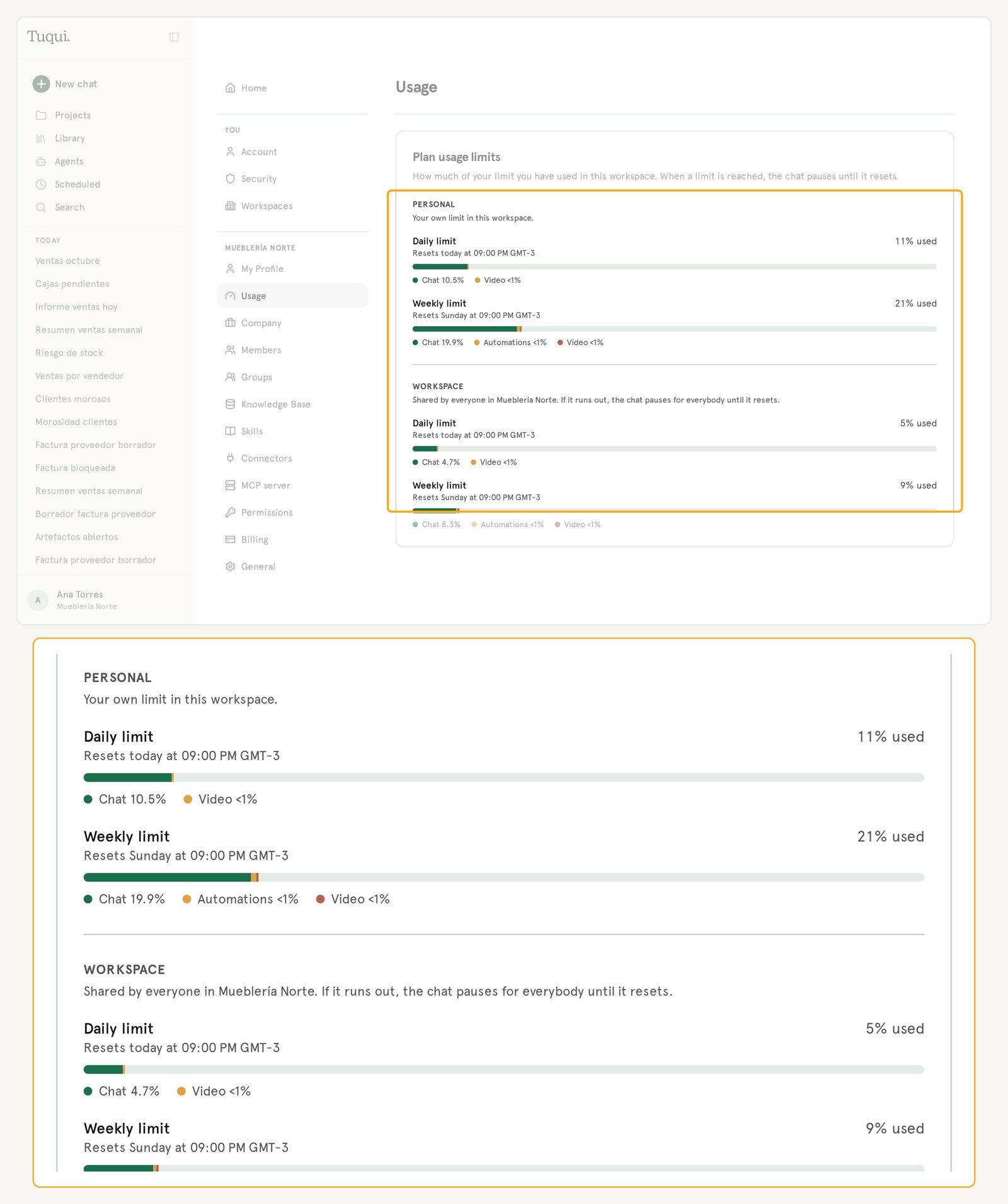
Plans are per person: Free, Go, Plus and Max. They change how much usage each person has per day, not the tools. See prices in the FAQ. Someone with No plan can’t use the chat. A Service account doesn’t take a plan. To see how much has been used, open Settings → Usage. There are two groups of limits, each with a Daily limit and a Weekly limit:- Personal: your own limit in this workspace.
- Workspace: the one everyone shares. If it runs out, the chat pauses for everyone until it resets.