

Your tasks are private. Nobody else sees them, workspace admins included.
What a scheduled task can see
A task of yours runs with your account: your Odoo user and the apps you connected. It sees what you would see in the chat, no more and no less. If your Odoo user can’t see costs, the task can’t either. See Security. The answer stays in the task’s conversation, which only you see. If the instruction asks it to send the result to someone else, that person gets what your account could see. Check the instruction before sending sensitive data. An agent’s task runs with the agent account, so it sees what that account sees.Create a scheduled task
- In the sidebar, go to Scheduled.
- Click New scheduled task.
- Fill in Name and, optionally, Description.
- In Instruction, write what you want it to do, the way you would ask in the chat.
-
Under When it runs, choose how it repeats. Below it you see the schedule in words and Next.
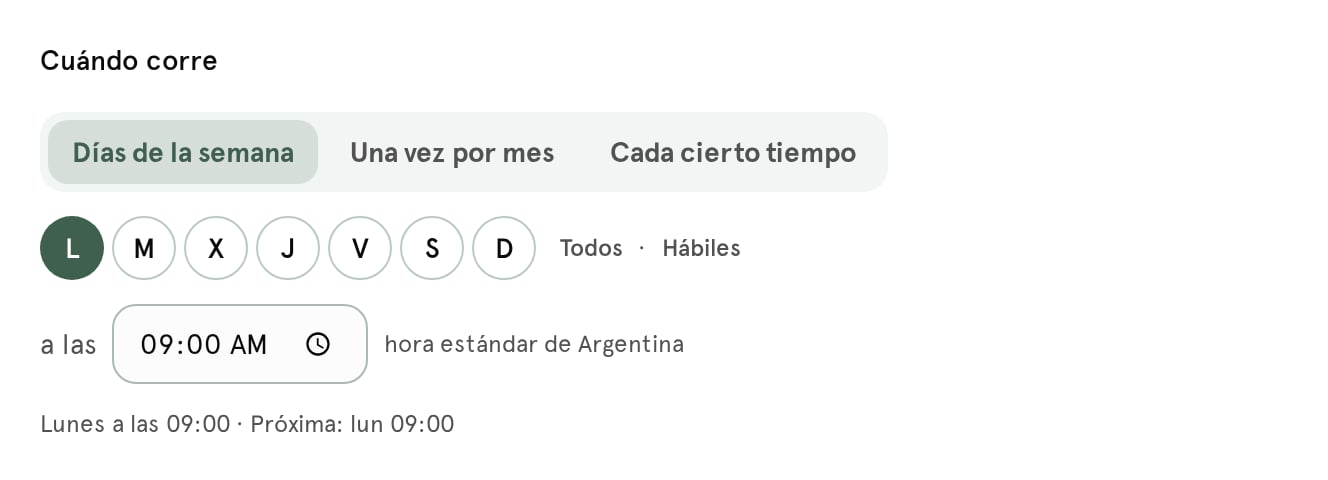
- If needed, tick Act without your approval (see below) and pick How much it thinks: Light, Normal, Strong or Max. Thinking more gives better answers, but takes longer. Some levels depend on your plan.
- Click Save.
Frequencies
Under When it runs you choose how it repeats:
From the chat, Tuqui can set up schedules those controls don’t show, such as the second Tuesday of every month or two times on the same day. On the task’s screen, that schedule is described in words or as Custom schedule, with a Change schedule button. If you use it and touch a control, you replace the schedule.
The schedule is read in your time zone. A 9:00 task keeps running at 9:00 when daylight saving time changes.
Where the result shows up
- In the task. Open the task from Scheduled. Runs lists every run, with its status and Open the full thread.
- In Notices, if you ask for it. A run that finishes fine sends no notice. If you want to know, say so in the Instruction: “let me know if there are late orders”. Tuqui leaves you a notice under the bell only on the runs where there is something to say. See Notices.
- By email, if it didn’t do what you asked. If a run doesn’t do something you asked for, such as an email that didn’t go out, it ends Incomplete and Tuqui emails you what was missing and the link to the run. It reaches you even if your Gmail or Outlook is disconnected.
Act without your approval
Some actions, such as sending an email or writing to Odoo, ask for your approval in the chat. In a scheduled task you are not there to approve them.- Off (how every task starts): if something needs your approval, it doesn’t do it. The run finishes anyway and tells you what it skipped.
- On: it does it anyway, with your account and without asking. Your workspace’s blocked tools stay blocked.
Manage your tasks
In Scheduled, each task has a switch to pause it or turn it back on without deleting it. Open a task to:- Run now: run it right away, without waiting for the schedule. Tuqui asks you to confirm. If you have unsaved changes, save them first.
- Edit: change the instruction, the schedule or the options, and click Save.
- Pause or Resume: from More actions.
- Delete: from More actions. It also deletes its runs and can’t be undone.
An agent’s tasks
An agent can also work on its own, on a schedule. Those tasks run with the agent account, not your account. See Agents.- Open the agent and go to the Where it works tab.
- Under When it works on its own, find the Automations row. If it isn’t there, click Add and pick it.
- On the Automations row, click the settings icon next to the switch.
- Click New automation and fill in the form.
- The agent needs an agent account, in Tuqui account, under Where it works.
- The agent’s Automations channel has to be on. Turning it on is done by a workspace admin.
- Whoever manages the agent creates and edits them. If they are not an admin, the automation stays off until an admin turns it on. If they change the instruction or the project, it turns off again.
- Deleting them is done by an admin.
- Their notices, the ones the instruction asks for and those of a failure or a switch-off, go to the admins who manage the agent. The result stays in each automation’s Runs and in Recent activity, in the agent’s Where it works tab.
- They use the agent’s effort, which is changed in Where it works, and the tools the agent is allowed to use.
- Someone who can use the agent but not manage it sees its automations in the Automations tab, without the instruction.
Limits and requirements
- Feature enabled: Scheduled only shows up in the sidebar if the feature is enabled in your workspace. It does not show in the Tuqui inside Odoo panel.
- Plan: tasks run on workspaces with a paid plan or in a trial. On the free plan they don’t run.
- Usage: your tasks count against your own usage, as if you made the request in the chat.
- Minimum frequency: every 15 minutes.
- Running by hand: once a minute at most.
- Duration: each run has the same limit as a chat answer, 30 minutes. See Background work.
- Failures in a row: every failure leaves you a notice, at most one a day. After 5 runs in a row fail, the task pauses itself and lets you know; if the notice rang on no device, you also get an email. An Incomplete run doesn’t count as a failure. Neither does a run stopped by a spending limit or by a failure of the AI model provider.
Troubleshooting
- I don’t see Scheduled in the sidebar. The feature is not enabled in your workspace, or you are in the panel inside Odoo: open it from Tuqui on the web.
- “The minimum frequency is every 15 minutes”. Pick a less frequent schedule.
- The task says “Paused automatically after several consecutive failures”. Open Runs to see what failed, fix the instruction and choose Resume in More actions.
- The run came out Incomplete. Something asked for your approval, a connector was missing, or it didn’t do part of what you asked. Open the run to see what was missing. Connect the missing app, make the Instruction clearer, or turn on Act without your approval if you want it to act without asking.
- The task turned off because its creator left. A task runs with its creator’s account. If that person leaves the workspace, the task turns off. Recreate it under a current member.
- An agent automation says “Waiting for an admin to turn it on”. Someone who is not an admin created or edited it. A workspace admin has to turn it on.
- I can’t turn on an agent’s Automations channel. When you turn it on, Tuqui checks each armed automation. If the agent account doesn’t have an app the agent uses connected, the error names it. Connect it with that account in Settings → Connectors, or remove the app from the agent.