

What is MCP?
MCP (Model Context Protocol) is an open standard that defines how AI models connect to external systems to call tools and read real data. Instead of hitting a different API for each assistant, your Odoo is exposed once and any compatible client (Claude, ChatGPT, Gemini, Claude Code, Cursor, VS Code, etc.) can consume it.How it works
Tuqui implements the MCP server as a Streamable HTTP endpoint with OAuth 2.1 authentication (PKCE + Dynamic Client Registration). When you add the connector in Claude or ChatGPT, the flow is:- The client discovers the server at
https://tuqui.com/mcp/<your-workspace>. - A
tuqui.comwindow opens where you log in and authorize the connection. - The client receives a token and uses it on every subsequent call.
- When you ask a question, the model calls one or more server tools and Tuqui queries your Odoo to answer.
Endpoints
- Per workspace:
https://tuqui.com/mcp/<your-workspace>Recommended. The workspace is pinned by the URL; the model cannot switch to another one. - Generic:
https://tuqui.com/mcpUseful if your user belongs to several workspaces. You need to pick one with theset_workspacetool at the start of the session.
Available tools
The catalog is not fixed: two members of the same workspace can see different lists. What the server exposes depends on four things:- Which groups the workspace exposes. In Settings → MCP server, Exposed surface card, an admin can stop exposing the Odoo and Chat groups. Both are on by default. The Core group (identity, workspace, diagnostics and skills) is Always on and cannot be turned off.
- Which features the workspace has on:
odoo_advancedto write to Odoo,artifactsfor the Library,video_qafor videos,judgmentfor judgments andmcp_connectors_outboundfor external connectors. - Your role and your tools. Some actions are admin-only, and an admin can narrow the tools of each member. See Write models.
- What you connected, for external connectors.
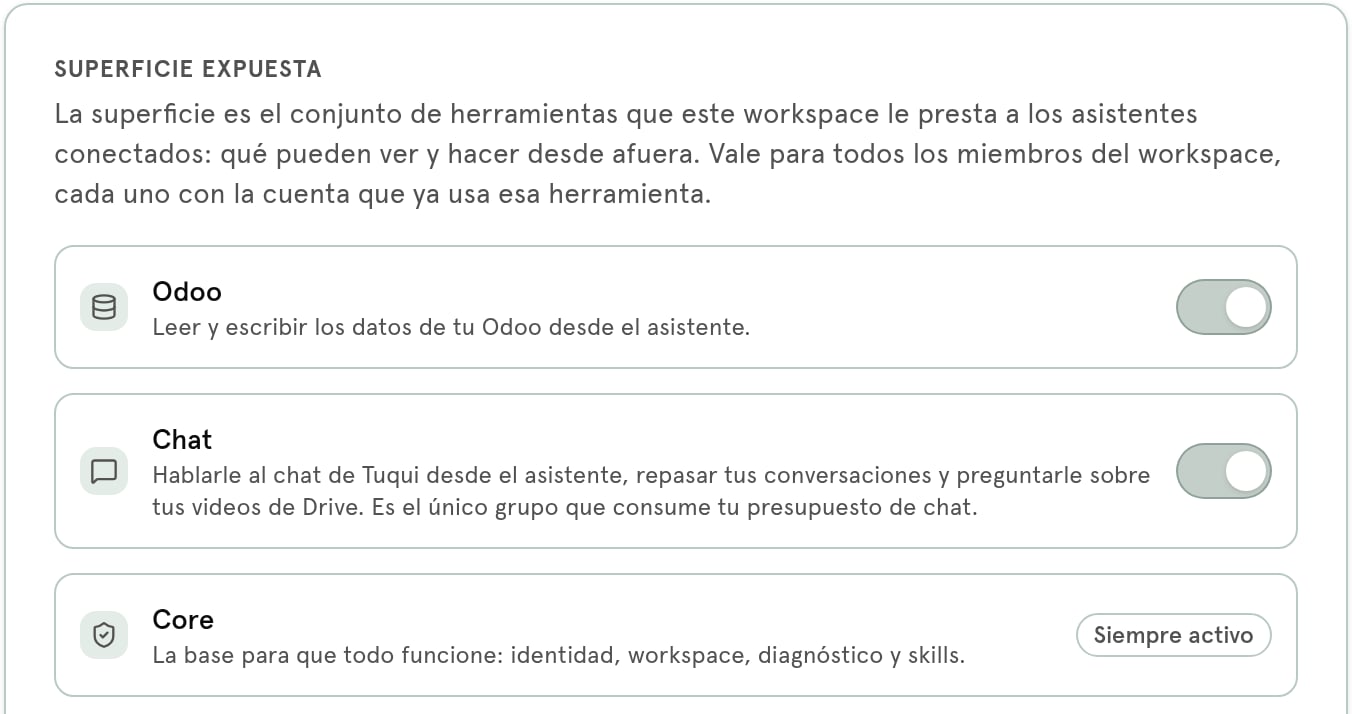
Core (always on)
“In one call” does not mean no approval: in the chat, Tuqui still asks before writing, unless you have a rule that allows it.
These tools only read from Odoo. They never change it.
Odoo: write (requires odoo_advanced)
These tools only appear when the workspace has the odoo_advanced feature on. The ones that change records are also gated per (model, operation) by the whitelist. odoo_message_post has its own control: the messaging mode.
See Confirmations and caps for when a write asks for confirmation.
Chat
These tools are in the Chat group, the only one that spends the chat budget.Library (requires artifacts)
Workspace administration
These tools configure Tuqui, not Odoo. What each action allows depends on your role: several actions are admin-only.External connectors
Besides its own tools, Tuqui’s MCP server can re-expose the tools of the workspace’s connectors (Google, Slack, Mercado Libre and any other connected MCP server). To the client they show up as more tools in the catalog, with a prefix that groups them: for example,google_drive_search_files or google_calendar_list_events.
A connector is an app with one or more skills, and each skill sets the prefix. The Google app, with Drive, Docs, Sheets and Calendar skills, contributes several tool families (google_drive_*, google_docs_*, google_sheets_*, google_calendar_*).
This feature is opt-in:
- It requires the
mcp_connectors_outboundfeature on the workspace, and an admin must expose each connector in Settings → MCP server, Connectors section. By default none is exposed. - A connector with per-user OAuth uses the token of whoever asks, with their permissions. If you never connected that service from Settings → Connectors, its tools don’t show up for you.
- A connector with a shared credential uses the workspace’s account. Once exposed, any member can use it from any MCP client.
Write permissions
Writes are opt-in per workspace. A fresh workspace is read-only: no model is on the whitelist, so no write tool can change anything.- A workspace admin enables writes from Settings → Permissions, per (model, operation). Each whitelist row carries four independent flags:
can_create,can_write,can_unlink,can_execute. You can also manage it from the chat or over MCP withodoo_write_models. - An optional domain on the row further scopes which records can be touched (for example: only own opportunities, or only quotations in draft).
- Sensitive fields are always blocked: passwords, API keys, OAuth tokens, 2FA secrets and session fields can never be set, even on enabled models.
- Dangerous methods are always blocked in
odoo_execute: every internal method (_*) plussudo,with_user,with_company,with_env,invalidate_cache,invalidate_recordset,flush*and the methods covered by the dedicated tools (create,write,unlink). - Every write call is logged (workspace, user, tool, model, ids, duration) just like reads.
Confirmations and caps
confirm=true is a flag the model sets. For the riskiest operations, in the Tuqui chat it is not enough: the confirmation only counts if you replied after seeing the preview. The model cannot confirm its own operation in the same turn.
“No preview” does not mean no approval: in the chat, Tuqui still asks before writing, unless you have a rule that allows it.
Irreversible methods are the ones that book a fact with a legal number or a stock move, or that send something out:
action_post, action_validate, button_validate, button_immediate_transfer, send_mail, action_send_mail, action_invoice_sent and action_send_and_print.
This confirmation is Tuqui’s, not Odoo’s, and it does not depend on tool approvals: setting odoo_execute or a method to “allow” does not remove it. It cannot be turned off.
Messaging (chatter)
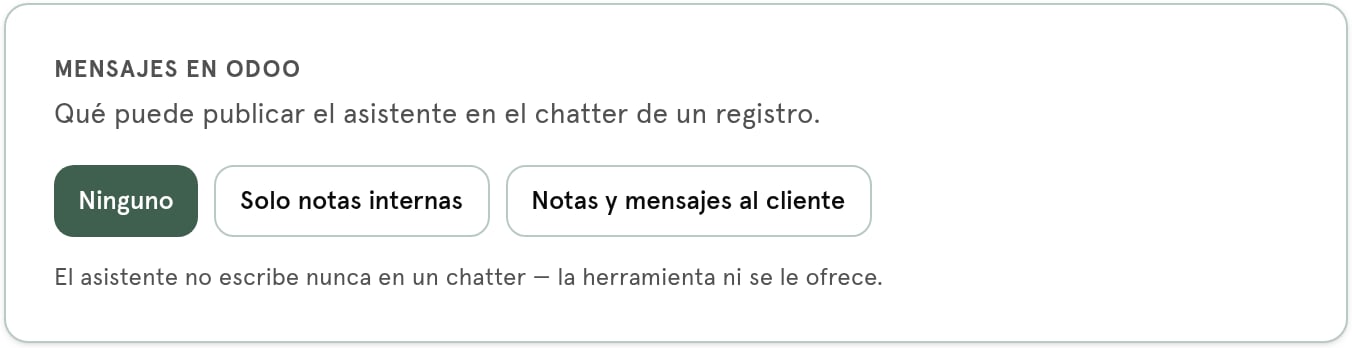
odoo_message_post does not go through the model whitelist. It depends on the workspace’s messaging mode, which an admin sets in Settings → Permissions, Messages in Odoo section:
- None (default): the assistant never posts in a chatter. The tool refuses any post.
- Internal notes only: notes your team can see. Nothing ever reaches the customer.
- Notes and customer messages: the assistant can also reply to the customer in the chatter.
Supported clients
Any client that speaks MCP over Streamable HTTP can connect: Claude, ChatGPT, Gemini, Claude Code, Codex, Cursor or VS Code. In every case you register your workspace URL and, the first time, sign in with your Tuqui account. Step-by-step guides: In Claude Code, add it from the terminal:/mcp, choose tuqui and sign in with your Tuqui account in the browser window.
Security
- Read-only by default. Out of the box no model is on the write whitelist and messaging is set to None, so no write tool can change anything. Writes only become possible after a workspace admin enables them per (model, operation).
- Granular write whitelist. Permissions are stored per (workspace, model) with independent
can_create/can_write/can_unlink/can_executeflags and an optional domain. Sensitive fields and Odoo internals are always blocked. - Encrypted credentials. The Odoo API key is stored encrypted with AES-256-GCM and never appears in logs or responses.
- Workspace isolation. Data access is enforced at the database level (Row Level Security); every MCP call is tied to a concrete workspace and user.
- Auditing. Every tool call, read or write, is logged with
workspace_id,user_id,tool_nameand duration.