

What you can share
Conversations are always private to whoever had them, even inside a shared project. To pass on the result of a chat, ask Tuqui to save it as an artifact and share the artifact.
The Share window
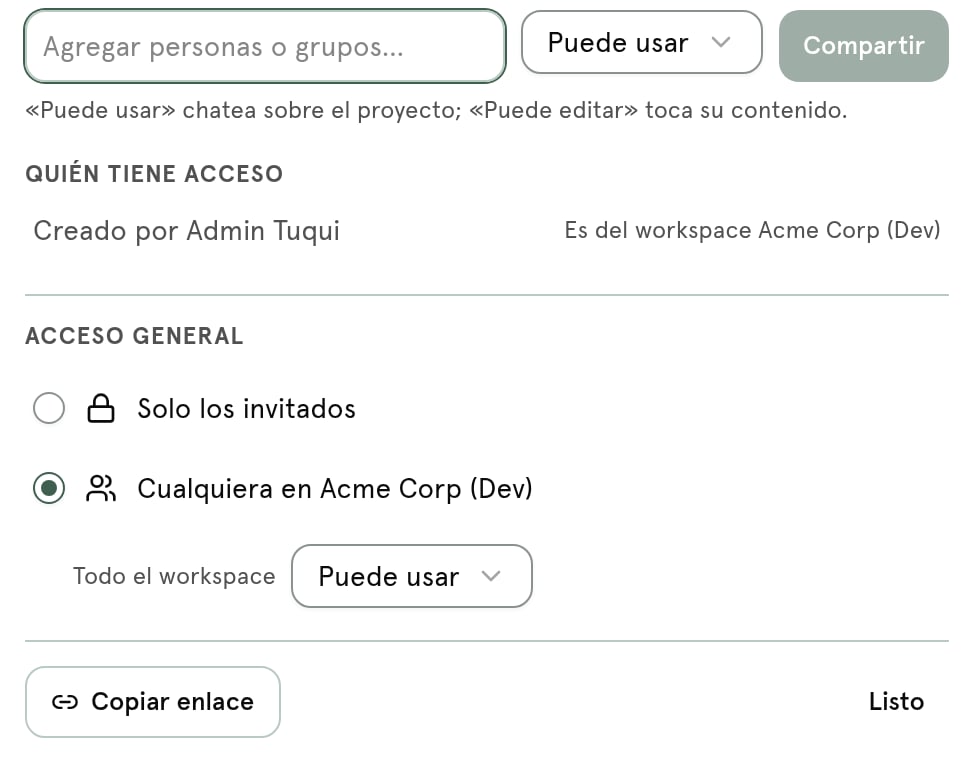
Artifacts, projects, agents and skills use the same window. Every change applies immediately: there is nothing to confirm at the end.- Click Share.
- In Add people or groups…, type and pick who to share with. You can add several.
- Choose the level: Can use or Can edit.
- Click Share. They move to the People with access list.
- Click Done to close.
Access levels
The creator and anyone with Can edit can invite others. A project, agent or skill published to the workspace is governed by admins: only they change General access or delete it. Anyone with Can edit can still invite people. On an artifact, with Can use you can open the window to see who has access, but not change anything. On a project, an agent or a skill, with Can use Share does not show up.
General access
Below the list is General access. It sets who gets in without an invitation:- Only the people invited: no one but the people and groups on the list.
- Anyone in [your workspace] with the link: any member who has the link can open it, but it does not appear in any list. Artifacts only.
- Anyone in [your workspace]: every member sees it in their list. This is called publishing to the workspace.
- Anyone with the link, even outside [your workspace]: the public link. Artifacts only.
Share an artifact
- Open the artifact from the chat card or from the Library.
- Click Share.
- Invite people or groups, or change General access.
Public link
The public link lets someone outside the workspace, with no Tuqui account, view the artifact.- In the Share window, under General access, pick Anyone with the link, even outside [your workspace].
- Click Copy link.
- Whoever opens the link sees the published version and the data as it was baked in, with your permissions. Check that there is nothing you don’t want to show.
- The page shows the notice “Page created by a Tuqui user” and lets the reader download the artifact.
- If a workspace member with access opens the link, Tuqui takes them to the Library.
- Picking another General access option closes the public link and it stops working. If you open it again, a new link is generated and the old one never works again. The address in the browser bar, however, leads to the public page again.
- While the artifact is archived, the link does not work.
- While the link is on, a report can’t be updated: it shows the figures as they were when you turned the link on.
- Only the artifact’s creator can pick it or, if it is published to the workspace, an admin. Neither Tuqui nor someone with Can edit can open it.
Share a project
- Go to Projects in the sidebar.
- Open the project’s options menu and choose Share. You can also open the project, go to Members and click Share.
- Invite people or groups as Can use or Can edit.
Groups
Groups are managed in Settings → [your workspace] → Groups. Every member sees the list of groups and who is in each one.Create a group
Only a workspace admin can create groups.- Go to Settings → [your workspace] → Groups.
- Click New group.
- Fill in Name and, optionally, Description.
- Click Create.
Add people
- Open the group.
- In Add a person, pick someone.
- If you are an admin, choose the Role: Member or Manager.
- Click Add.
Roles in a group
What happens when a group changes
- Whoever joins a group receives everything shared with that group.
- Whoever leaves stops receiving it. Only a manager or an admin can add them back.
- If the group is deleted, whatever was shared with it stops reaching its members. The people stay in the workspace.
- If someone has access on their own and also through a group, removing their individual access does not take it away: they still get in through the group.
Requirements
- You can only share with people who have already accepted their invitation to the workspace. The same goes for adding them to a group.
- Agent accounts cannot be in a group.
- Sharing artifacts requires the Library to be enabled in the workspace.