

Does Tuqui write to Odoo by default?
No. Every workspace starts read-only.
How is it enabled?
An admin enables the model and operations in the panel.
Can the scope be restricted?
Yes. With an optional domain per model.
Are there confirmations?
Yes. In the chat, every write asks for your approval. Deletes and irreversible methods also wait for your reply to the preview.
How to enable it
Requires the admin role in the workspace and the Advanced Odoo feature (odoo_advanced) on. If the Write whitelist section doesn’t appear in Settings → Permissions, that feature is not on in your workspace: ask support to turn it on.
- Open Settings → Permissions.
- In the Write whitelist section, type the technical name of the Odoo model in Add model (for example,
sale.order,crm.lead,project.task) and click Add.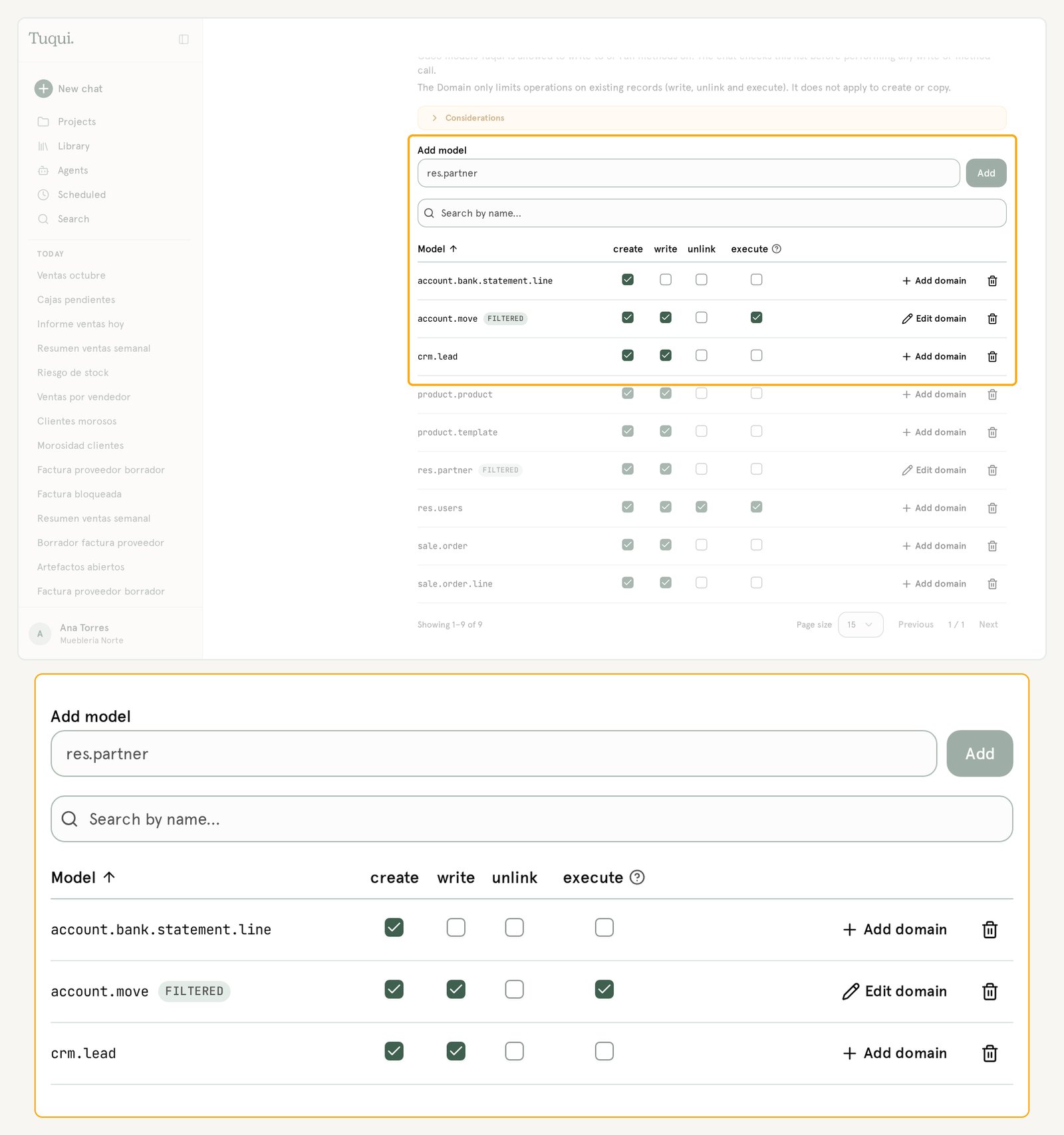
- The model appears as a new row with four checkboxes: create, write, unlink and execute. All start unchecked.
- Check the operations you want to allow and click Save. The button appears on the row when there are unsaved changes.
- (Optional) Click Add domain to open the domain editor. See Domains below. Once saved, the model shows the filtered badge and how many records match.
odoo_write_models tool: any member reads it (list, or get for one model), and admins add a model, change its flags or its domain (save) or remove it (delete). Those two actions always ask for your confirmation.
If you use the Tuqui module in Odoo
With the Tuqui companion module installed in your Odoo, Tuqui’s Read-only mode is on by default in Odoo’s settings. Exception: if your Odoo 19 already had the module before this setting existed, the update left it off. While it is on, Odoo refuses every write even if the model is on the whitelist, and Settings → Permissions shows the Writing is disabled notice. To write, turn off Read-only mode in the Tuqui module settings in your Odoo. The notice’s Enable it in Odoo button opens your Odoo.How it works
The whitelist lives in theworkspace_write_models table. Each row maps a (workspace, Odoo model) pair and has four independent permissions:
Before executing any write, the tool consults the whitelist and rejects the operation if the matching flag is off. Permission to write one model does not imply permission to write another: each model is authorized separately.
For the write tools to appear, in the chat or over MCP, the
odoo_advanced feature must also be on in the workspace. Without it, the tools aren’t exposed and the whitelist isn’t consulted.
odoo_message_post also depends on odoo_advanced, but it does not go through this whitelist: it depends on the workspace’s messaging mode (Settings → Permissions, Messages in Odoo section). See Messaging (chatter).Layers that always apply
Even with a model enabled, these protections apply:- Sensitive fields blocked: passwords, API keys, OAuth tokens, 2FA secrets and session fields are explicitly rejected on
create/write. They are not silently filtered: if they show up in the payload, the operation fails. - Dangerous methods blocked in
odoo_execute:create,write,unlink(covered by dedicated tools),sudo,with_user,with_company,with_env,invalidate_cache,invalidate_recordset,flush*. Any method starting with_(Odoo internal API) is also blocked. So are messaging methods (message_postand similar, and WhatsApp sends): to post to the chatter there isodoo_message_post. - Approval in the chat. In the Tuqui chat, every tool that writes asks for your approval before it runs: Just this once or Always allow. It doesn’t ask if the tool is already on Always allow, set by you or by an admin in Settings → Permissions.
- Your reply to the preview, for what can’t be undone. The model sets
confirm=true, so for the riskiest operations it is not enough: in the Tuqui chat, the operation only runs if you replied after seeing the preview. Approving or allowing the tool doesn’t remove this step. See Confirmations and caps.odoo_write: runs in a single call, up to 200 ids. Above that, it is refused. The exception is forcing a workflow field by hand (for example, the state): in the chat it returns a preview and waits for your reply.odoo_unlink: always returns a preview and waits for your reply. Over MCP, it asks you to approve the delete in Tuqui. Cap: 50 ids per call.odoo_execute: reversible methods (for example,action_confirm) run in a single call. Irreversible ones record a fact with a legal number or a stock move, or send something out:action_post,action_validate,button_validate,button_immediate_transfer,send_mail,action_send_mail,action_invoice_sentandaction_send_and_print. In the chat they return a preview and wait for your reply. On a payment (account.payment),action_postwaits for your reply only if the payment goes through a payment provider. Cap: 200 ids per call.
- Over MCP, your assistant approves. Claude, ChatGPT and the other clients ask you before each call. That is why, over MCP,
odoo_writewith a workflow field and the irreversible methods ofodoo_executerun in a single call, without a preview. - With nobody to reply, nothing irreversible. In scheduled tasks and agents, irreversible methods are refused. The only exception is validating deliveries (
button_validateorbutton_immediate_transferonstock.picking) in a scheduled task of yours with Act without your approval on.
Per-member permissions
The whitelist applies to the whole workspace. On top of it, an admin can decide which tools each member uses. Open Settings → Members, go to the person’s profile and find the Tools card:- Can write: a single switch. When off, that person gets no tool that writes (in Odoo or in connectors), neither in the chat nor over MCP. They can still read.
- Advanced: choose tool by tool: to take specific tools away from that person when the switch doesn’t cover it. Lift the restriction gives them all back.
Risks to keep in mind
Enabling writes shifts part of the control over Odoo’s state to the LLM. Before enabling a model, it pays to understand what can go wrong:- Unexpected mutations from LLM interpretation. The model decides which fields to touch and what values to use based on the natural-language request. An ambiguous instruction can translate into a
writeyou didn’t expect.odoo_writeshows no preview: your approval in the chat is the barrier. - Always allow. With Always allow, in the chat or in your assistant, writes run without asking you, up to 200 records per call. Over MCP, that includes posting, validating and sending, even if the assistant read it as an instruction in an Odoo text (an email, the chatter). Give Always allow only to what you’re sure of.
- Custom Odoo methods.
can_executelets the LLM invoke any public method not on the block list. Custom methods from client modules can do almost anything (send mail, call external APIs, create accounting documents). Enablingexecuteon a model amounts to trusting all of its public methods. - Cascading deletes.
odoo_unlinkhonors Odoo’sondeleterules, so deleting a record can pull related ones with it. The preview shows direct records, not the cascade. - Odoo user permissions. The whitelist filters which tools the LLM can use; the effective permissions in Odoo are still those of the connected user’s API key. If that key has admin role, the whitelist is the only line of containment on Tuqui’s side.
- Asynchronous audit. The log lives in Tuqui, but the functional owner of the data is Odoo. If you need strong traceability (who/what/when from Odoo), complement with
mail.messageor an audit module on the Odoo side.
Rule of thumb: start with
create/write on non-critical models (notes, tasks, opportunities), leave unlink and execute off until you have a clear use case, and ramp up one step at a time.Domains: how to restrict scope
By default, when you enable a model on the whitelist, the permission applies to all records of that model (always within what the user’s API key can see). That is usually too broad: enablingwrite on sale.order means any sales order in the system can be modified.
To narrow it down, every whitelist row has an optional domain field — an Odoo domain expression (the same syntax you use in search / search_read).
What it does
- Domain empty (default): the permission applies to any existing record of the model.
- Domain set: before executing the operation, Tuqui resolves the domain combined with the requested ids against Odoo. Ids that do not match the domain are rejected with an out-of-scope error. The operation runs only if every requested id is within scope.
Which operations it applies to
The domain filters operations on existing records:odoo_write(ids being modified)odoo_unlink(ids being deleted)odoo_executewhen ids are passed (instance methods)odoo_htmlwhen it edits
odoo_create— there is no existing record to filter; any field value could create a record outside the domain.odoo_copy— copying counts as creation.odoo_executewithout ids (@api.modelmethods).
Examples
Quotations only (not confirmed orders):odoo_write on sale.order can only modify draft or sent quotations. A confirmed order is out of scope and gets rejected.
Records from a specific company:
True/False/None); it is normalized to JSON on save.
Recommended pattern
- Enable the model with
can_writeorcan_unlinkand an empty domain in staging to understand which records are involved. - Tune the domain so it only covers the subset your flow needs to touch (by state, company, assignee, category).
- Validate that the number of matching records is what you expect. The domain editor shows it when you save.
- Promote the change to production.