

Version requirement: Odoo 16 or higher. Tuqui works with Odoo 16, 17, 18, 19 and 20, on Odoo Online (SaaS), Odoo.sh and on-premise. Odoo 14 and 15 connect, but unsupported: some features may fail and are not fixed for those versions. Odoo 13 or earlier does not connect.
Choose how to connect
With the Tuqui module (recommended)
For Odoo 16 to 20 on Odoo.sh or on your own server (Community or Enterprise). No per-user API keys: you connect once from the Odoo settings.
With an API key
For any supported version, including Odoo Online.
Connect with an API key
What you need
- Your Odoo URL: for example,
https://mycompany.odoo.com. - Database: the database name. It is usually the subdomain (for example,
mycompany). - Login: the login of the Odoo user who owns the API key.
- API key: from that same user.
What permissions does it need?
The Odoo user must be a system administrator (groupbase.group_system): on the user form, the Administration field must be set to Settings. Tuqui checks this when you connect. If the user does not have that group, the connection fails with the error “The Odoo user is not a system administrator”.
Tuqui needs this permission to sync users and to manage the individual API key of each team member.
How to generate the API key in Odoo
Follow these steps in your Odoo:- Log in to Odoo with the administrator user.
- Click your photo (top right) → My Preferences (Preferences before Odoo 19).
- Open the Security tab (Account Security before Odoo 19).
- Click Create API Key (Add API Key in Odoo 19, New API Key before).
- Write a description (for example, “Tuqui”) and confirm with your password.
- Under the duration (Expires in Odoo 20), choose the option that never expires: Never in Odoo 20, Persistent Key in 18 and 19. In 16 and 17 keys never expire.
- If Odoo shows Scope, choose RPC. Odoo does not let Tuqui in with an MCP-scoped key.
- Copy the key: Odoo shows it only once.
How to connect
- In Tuqui, open the connection wizard, type your Odoo URL and click Continue.
- Choose Use an API key (or Connect with API key, if Tuqui found the module).
- Fill in Workspace name, Database, Login and API Key.
- Click Connect Odoo.
From the chat
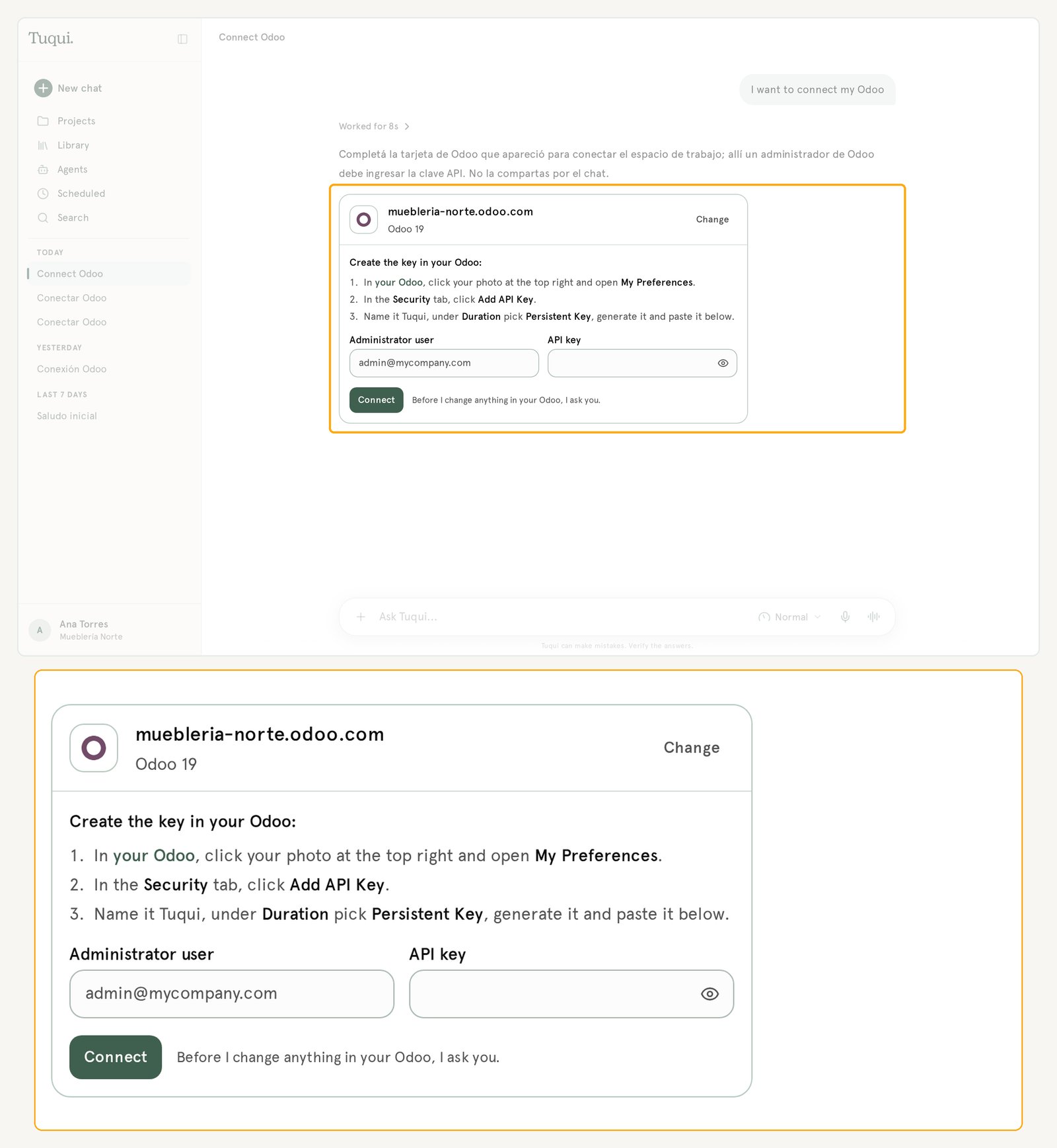
You can also connect Odoo without leaving the chat. Ask Tuqui “I want to connect my Odoo” and a card appears for you to fill in right there.- Type your Odoo address (for example,
https://mycompany.odoo.com) and click Continue. - The card recognizes your Odoo version and shows you the steps to create the API key in that version.
- Fill in Administrator user and API key, and click Connect.
Is it secure?
Yes. By default Tuqui uses the API key only for read queries. Credentials are stored encrypted, and writes on Odoo (create, update, delete, execute method) stay disabled until a workspace admin enables them per model from the Tuqui panel. See MCP Server → Write permissions and, for security questions in general, Security.Verify or disconnect the connection
An admin sees the connection status in Settings → General, in the Odoo connection section. It shows how it is connected, your Odoo URL and when it was last checked: Last check if you connected with an API key, or Last heartbeat if you connected with the Tuqui module.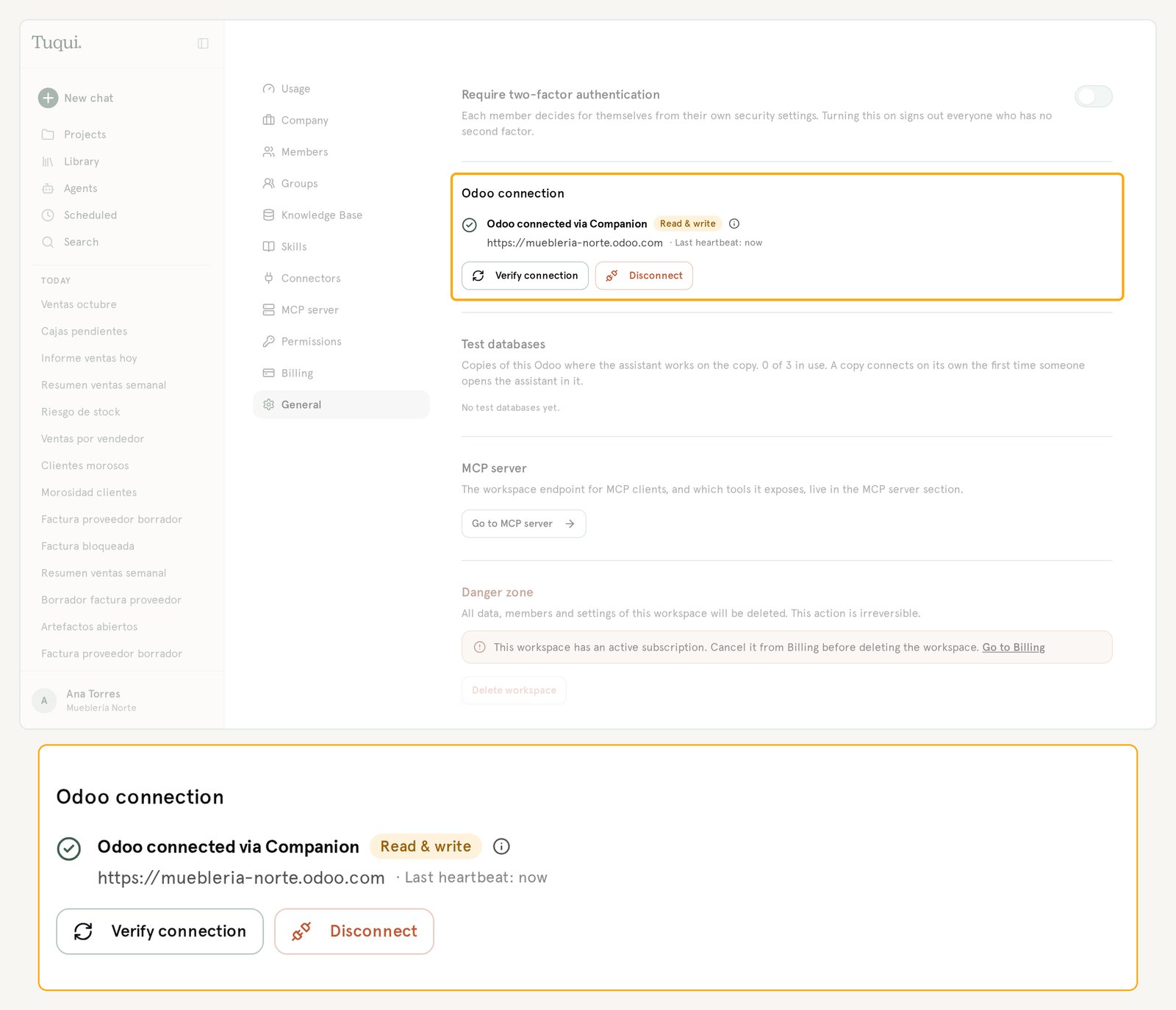
- Verify connection tests the connection right now.
- Edit (with an API key) lets you load new credentials, for example when the API key expired.
- Disconnect removes the connection from this workspace. Use it before connecting the database to another workspace, or to switch from an API key to the Tuqui module.
Troubleshooting
- Tuqui can’t reach your Odoo (the error says
Could not detect Odoo versionorOdoo returned HTTP …): check that the URL is correct and that your Odoo is reachable from the internet. - A proxy or WAF is answering instead of Odoo: if the failing requests never show up in Odoo’s own logs, something in front of it is blocking Tuqui. See A proxy is blocking Tuqui.
- Credentials rejected (the error says
Invalid Odoo credentials): make sure the login and the API key belong to the same user and that the key is valid. In Odoo 20, and in Odoo Online from 19.4, the key has to have the RPC scope. - “The Odoo user is not a system administrator”: give the user the
base.group_systemgroup and try again. - The API key expires soon: generate a new one that never expires (Never in Odoo 20, Persistent Key in 18 and 19).
- Tuqui can’t find the database: the database name is case-sensitive.
- “The Odoo connection is down and needs to be reconnected.” appears: click Go to General to reconnect and then Verify connection. If you connected with an API key and it expired, click Edit and load a new one. Disconnect is the last resort.
- You can’t find “API Keys” in your profile: this is the most common sign that your Odoo is older than version 14, which cannot connect. Tuqui supports Odoo 16 or higher.